
Batch Reports make it simple to get a full picture of your code without breaking your workflow. You can select multiple reports and generate them all in seconds. Then, export them as .html for easy viewing or .txt for quick sharing - the choice is up to you.
To get started, you'll want to configure your reports first under Reports -> Configure Reports.
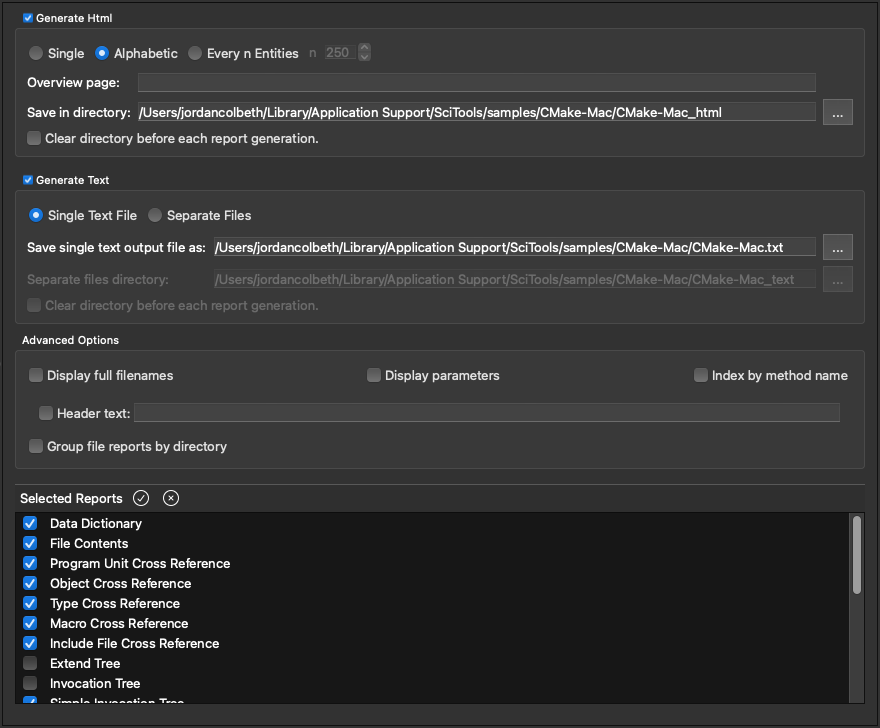
In the report configuration screen, you can specify whether to generate html versions, txt versions, or both. You can also specify your output filepath, as well as a handful of advanced options like adding custom headers, displaying parameters, or grouping reports by directory. Most importantly, here is where you will select the reports you'd like to run:
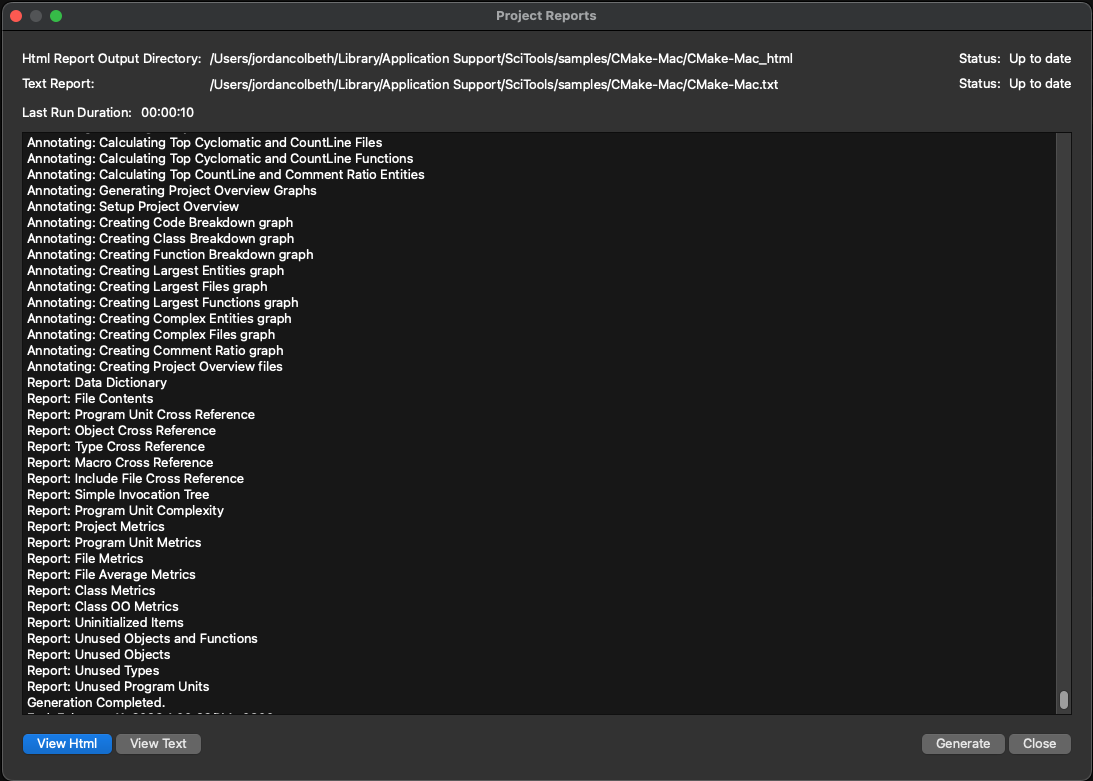
Once your reports are selected, just press OK in the bottom right and the window will close. Now, we have to generate our reports! To do so, go back to the top level menu and select Reports -> Generate Reports. Once the reports are finished being created, you'll be able to view them, regenerate them, or simply close the window:
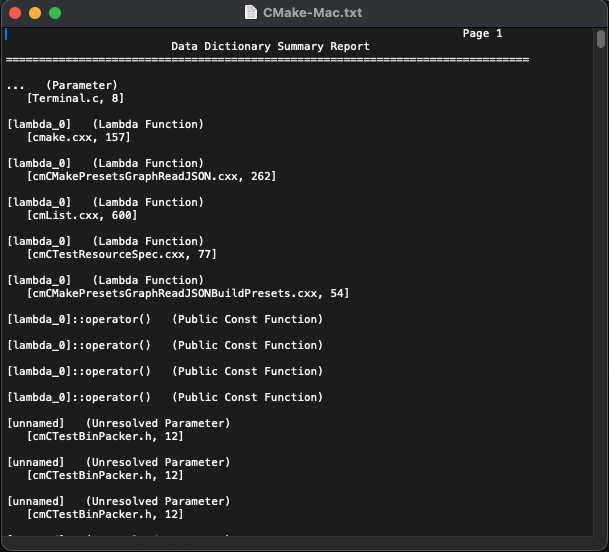
Here you can see a sample txt version of a Batch Report:
And here is a sample html version:
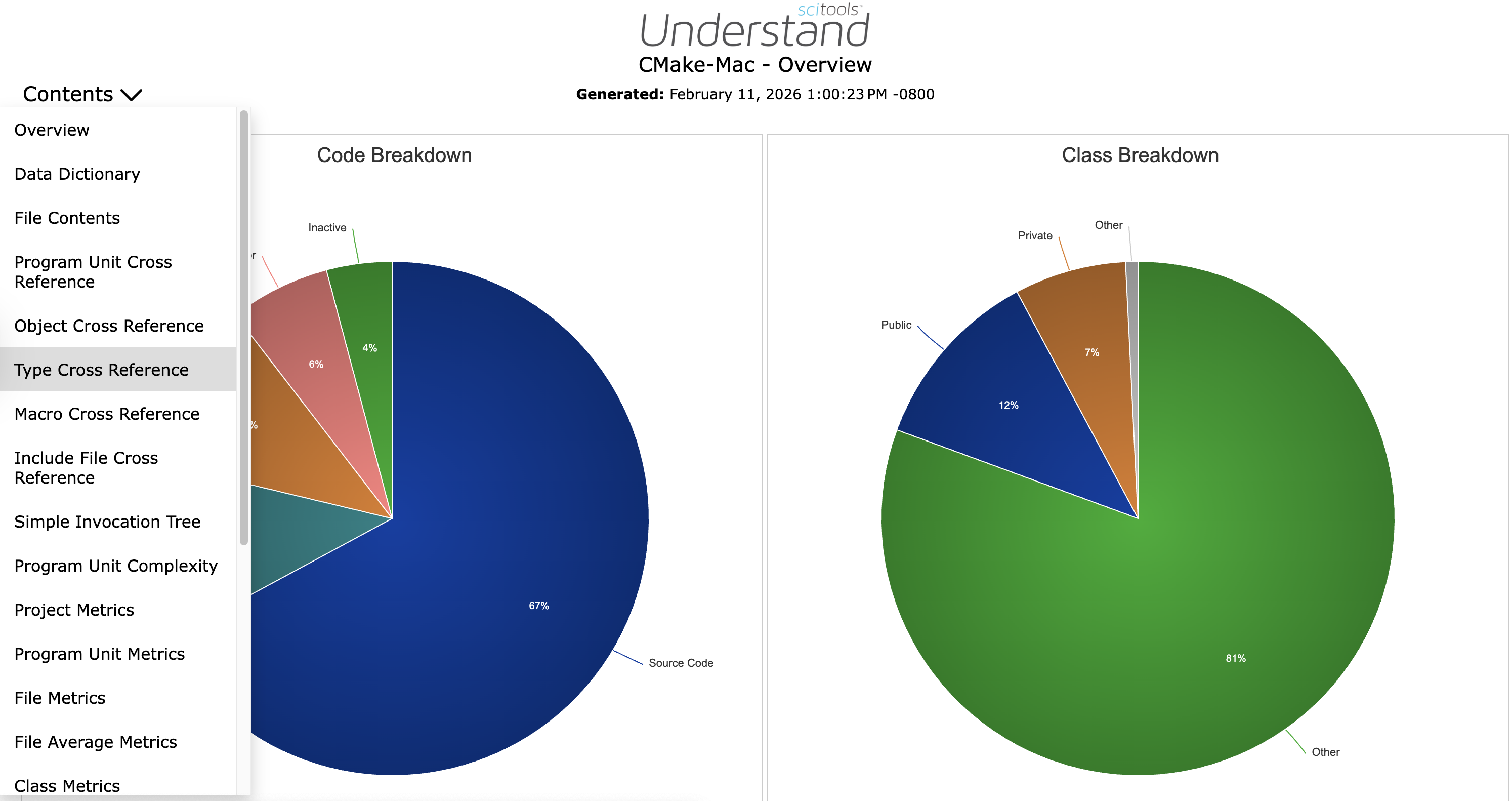
With the html version, there is a full table of contents with each individual report, as well as a project overview with a handful of helpful graphics and charts. If we click into one of the reports, say Type Cross Reference, we're taken to a list of all types and relevant references in the project, sorted alphabetically for convenience.
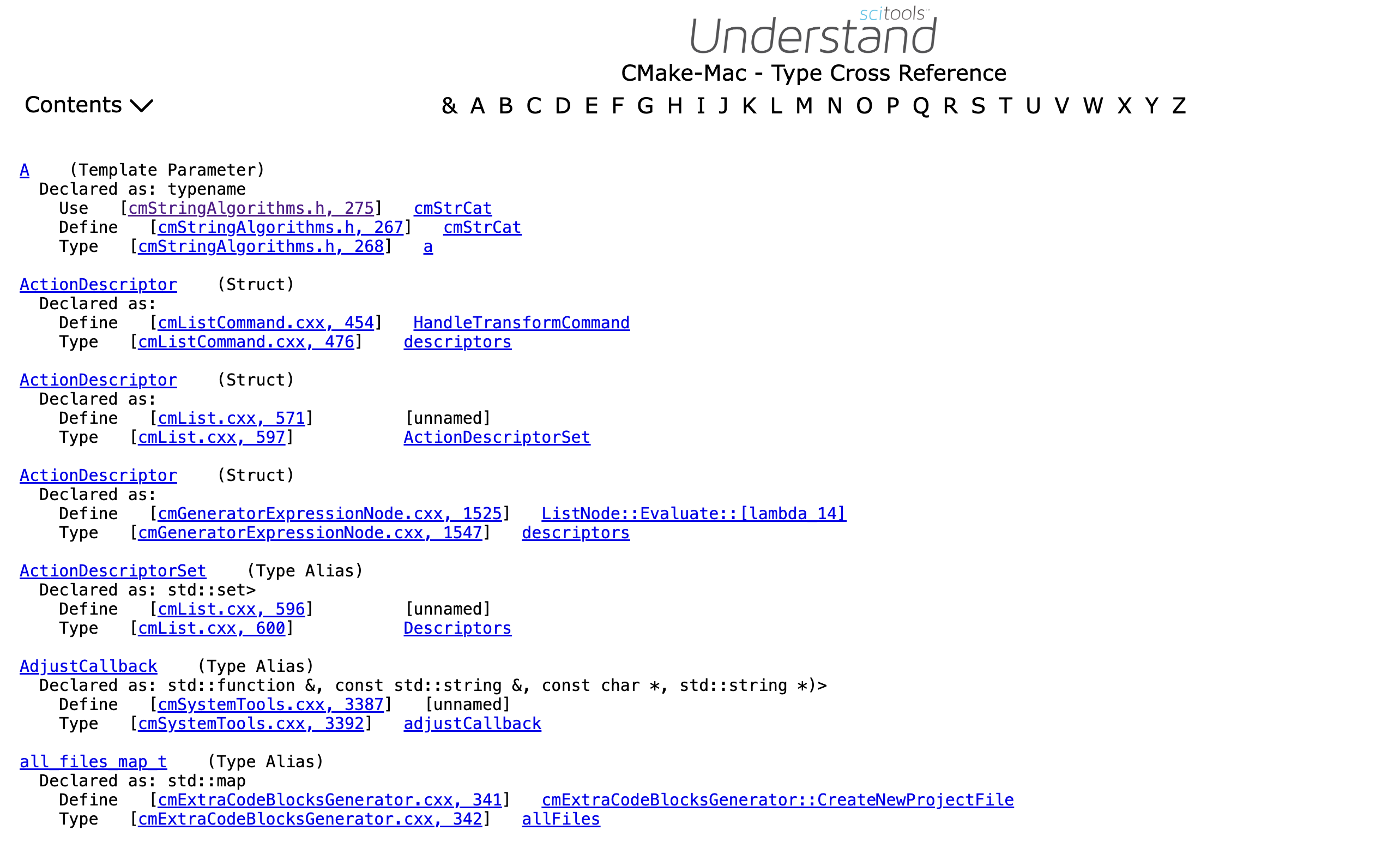
Clicking on any of the blue or purple links in an html report will take you to the relevant location in the source code. For example, selecting the 'use' reference under template parameter A takes me here:
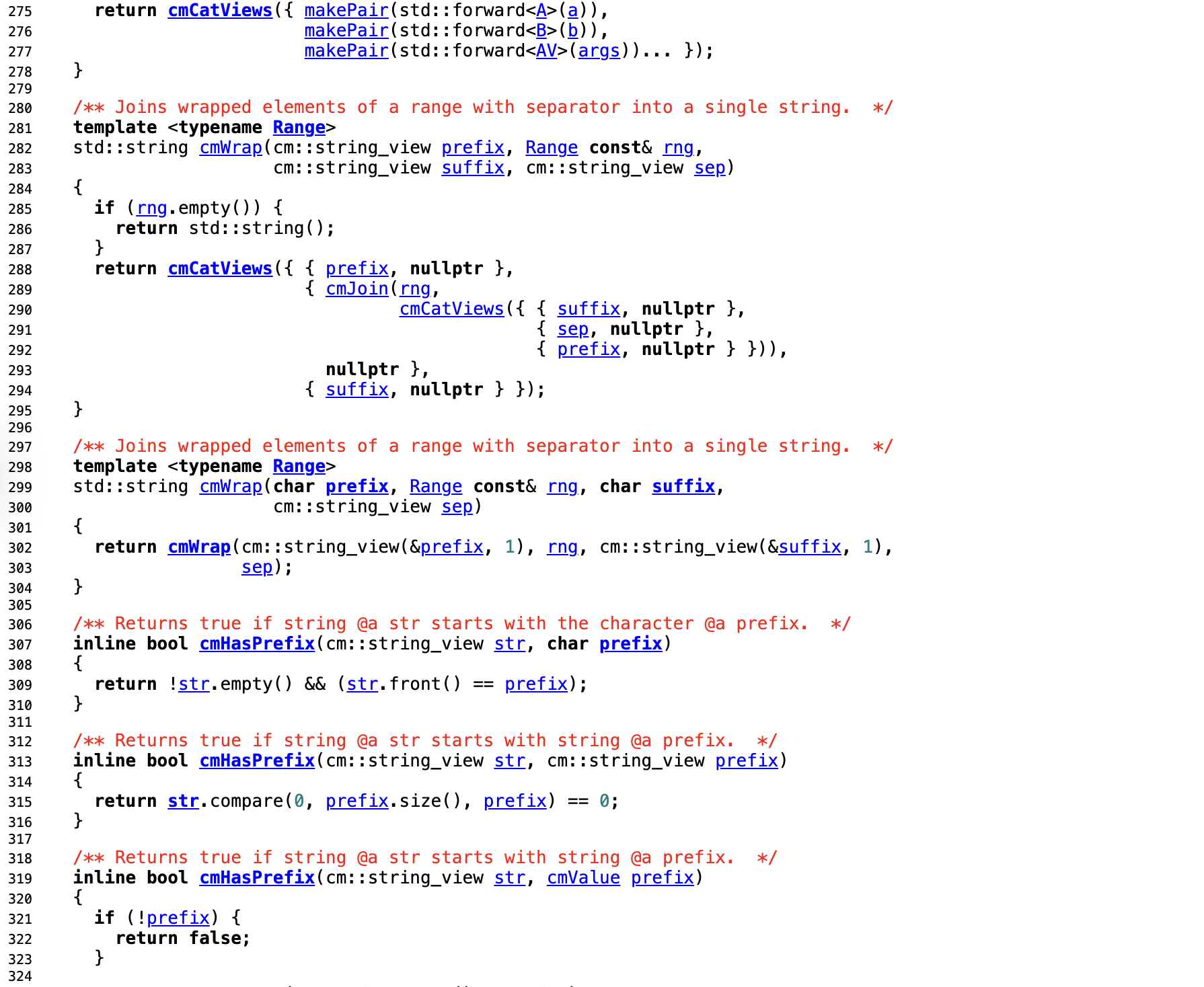
As you can tell, Batch Reports can be an extremely useful way to get insights into a codebase in just a few clicks. Whether you're looking for a high-level overview of the project you just inherited, or you want to send a metrics summary over to another team, Batch Reports are the way to go.
More of a visual learner? Watch this short video to learn the basics: