Understand provides a way to check your code using published coding standards or your own custom standards. These checks can be used to verify naming guidelines, metric requirements, published best practices, or any other rules or conventions that are important for your team. Read on to see the steps, or if you prefer, watch a video here.
To get started with CodeCheck let’s open it by going to the top-level menu in Understand and selecting Checks → Open CodeCheck:
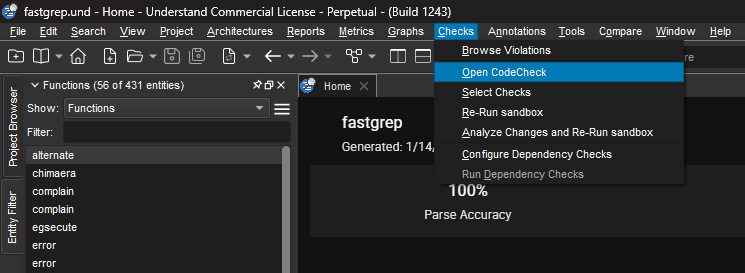
Select an existing configuration
The CodeCheck dock will open up on the right side of Understand by default. This dialogue allows us to quickly select a standard that we would like to use, the files we would like to check and an 'Inspect' button to kick things off:
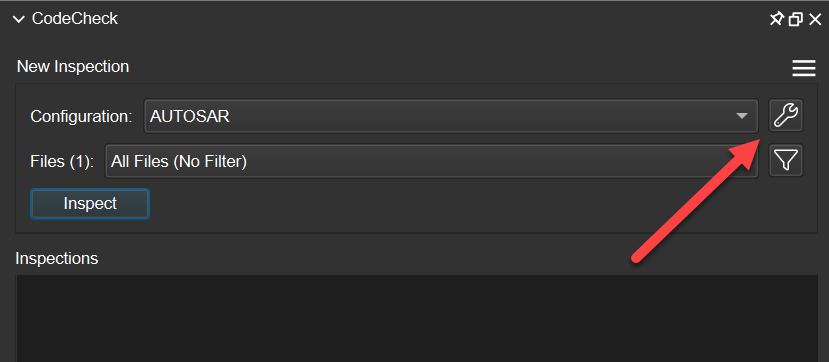
But if we click this wrench icon, we can get a more details description of the available standards and what they test for.
Published Coding Standards
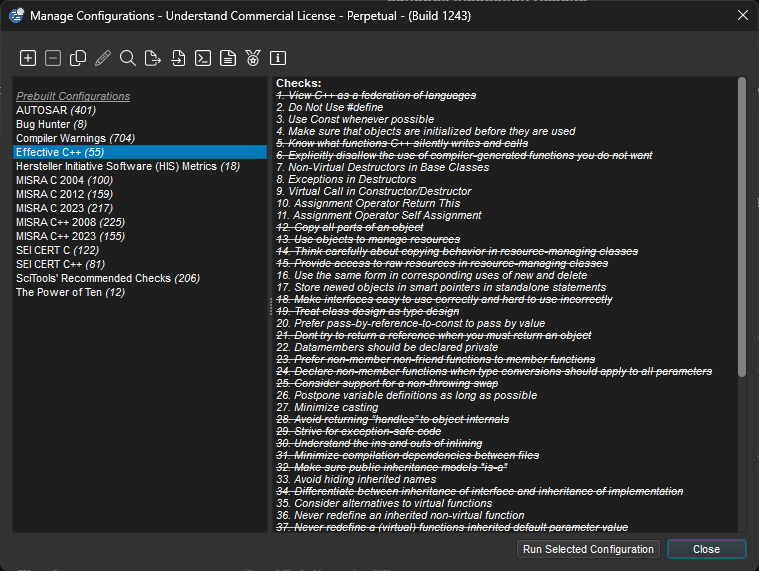
Here you’ll will find many checks from several published standards, compiler warnings, SciTools' internal check recommendations, and our own Bug Hunter checks if you have that feature enabled:
Creating a Custom Configuration
To create your own custom configuration, press the ‘plus’ button in the top left of the config interface (shown above), choose some checks, and press save - it’s as easy as that.
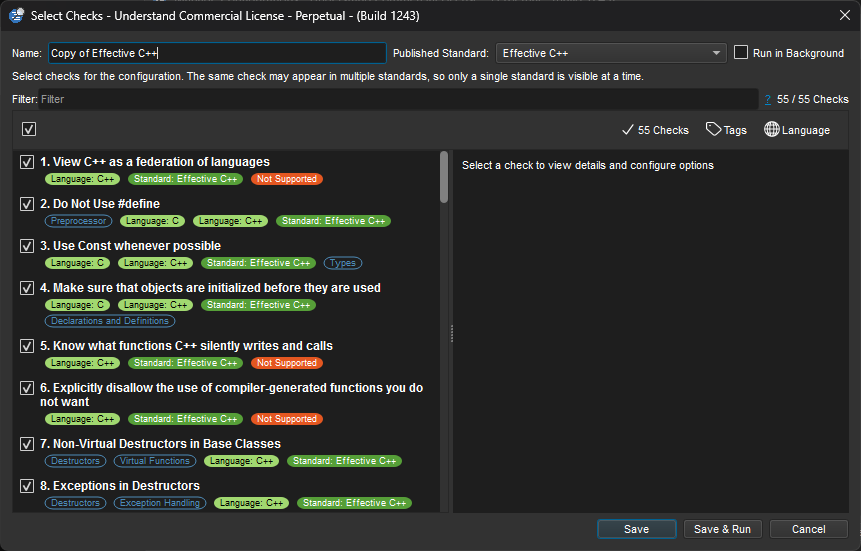
Or, you can start with an existing standard and modify it to your needs by selecting a standard from the left and clicking the copy button ( Third icon from the left ), and then modifying the configuration to your needs:
Running CodeCheck
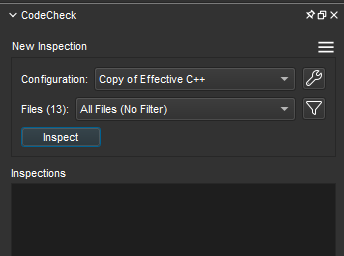
Now that we know which checks we want to run, let’s run them! At the top of the CodeCheck dock just choose a built-in or custom configuration from the 'Configuration' drop down menu, which project files to run the checks on, and press ‘Inspect’.
Viewing Your Results
After running CodeCheck, an inspection report will be created and will become selectable from the 'Inspections' portion of the CodeCheck dock:
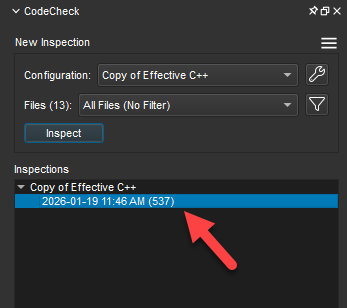
CodeCheck inspection reports serve as a snapshot of your code when the inspection is run. It's possible to have multiple configurations and reports available. These reports can be used to show violations over time or how different inspections compare to each other.
Once you’ve run your checks you can view the results in several different formats. Selecting an inspection from the 'Inspections' section, will load an overview in the Main Document Viewer.
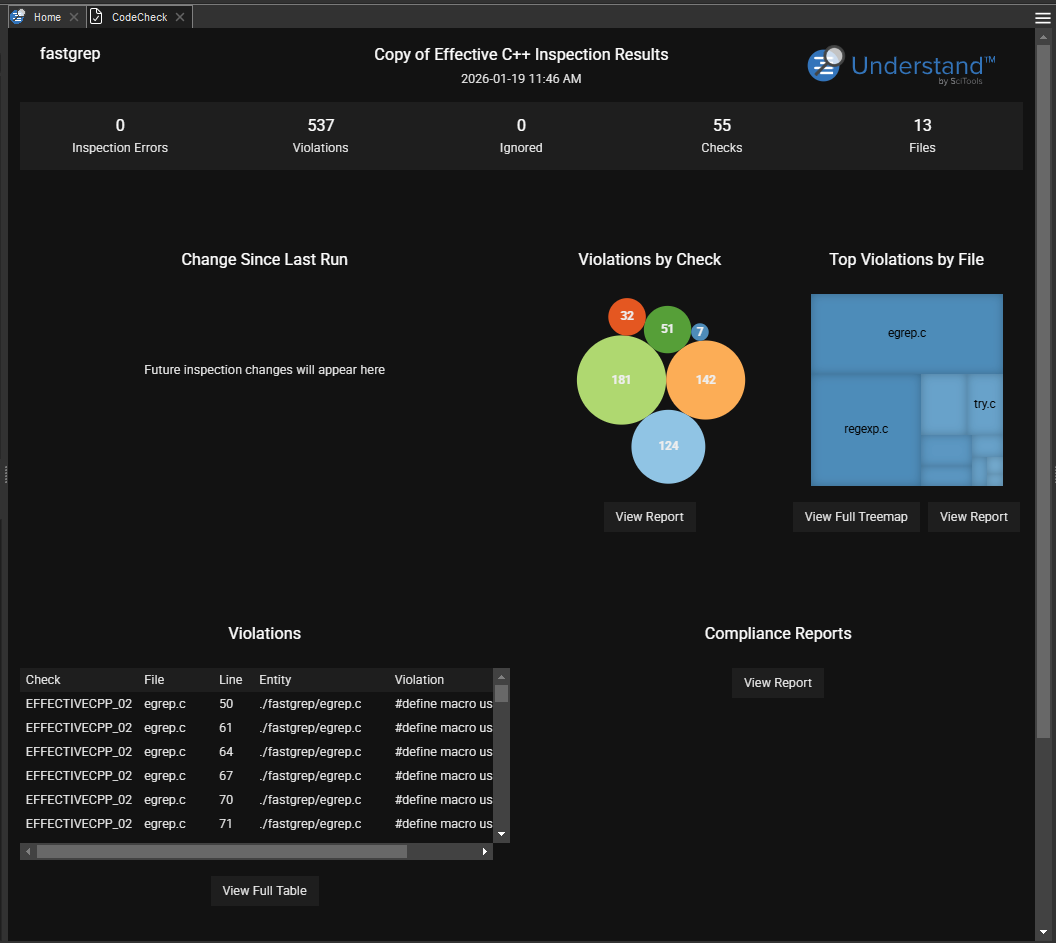
Selecting Inspection Errors, Violations, Ignored, Checks or Files will result in a different view organized by your selection. If any of the accompanying numbers are 0, such as with Inspection Errors or Ignored in the above example, no report will be available. Additionally, the tree map and locator views are available from the overview page.
Exporting
When looking at one of the detailed results views, We can export the results by using either of these buttons:
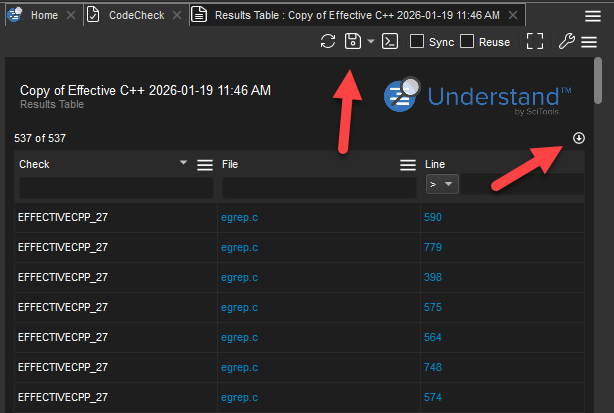
Please note that not all licenses have exporting enabled. If you would like to export these results reach out to support@scitools.com and we'll put you in contact with a distributor that can help.
Does your team have specific standards that you would like to easily test for but the check isn’t already in the collection of checks included in CodeCheck? Send us an email at support@scitools.com with your team’s standards and we will send you a quote. You can also write your own CodeCheck rules using the Perl or Python APIs, just let us know if you get stuck and need a hand.